 RetroDrop
 setup guide
Everything from installing RetroDrop to sending your first photo, for both kinds of old iPhone. Stuck? Jump to Troubleshooting.
1. Install RetroDrop on your Mac
- Download RetroDrop. It's free, and needs macOS 14 Sonoma or later.
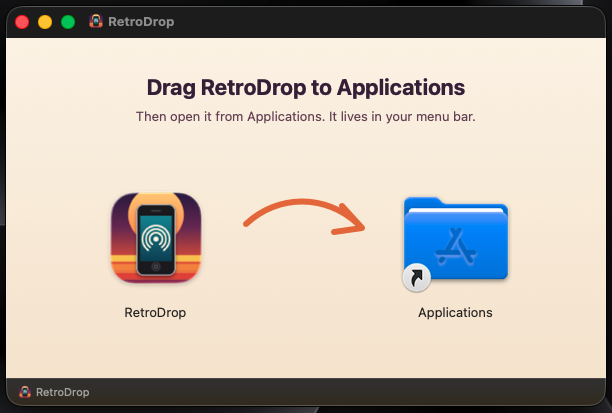
- Open the downloaded RetroDrop.dmg. Drag RetroDrop onto Applications, then eject the
RetroDrop disk.
- Open RetroDrop from Applications.
"RetroDrop Not Opened": allowing it the first time
macOS warns about RetroDrop because it's a free app that isn't notarized by Apple yet. Notarization requires a paid Apple membership, and the warning doesn't mean anything was found wrong. You only do this once:
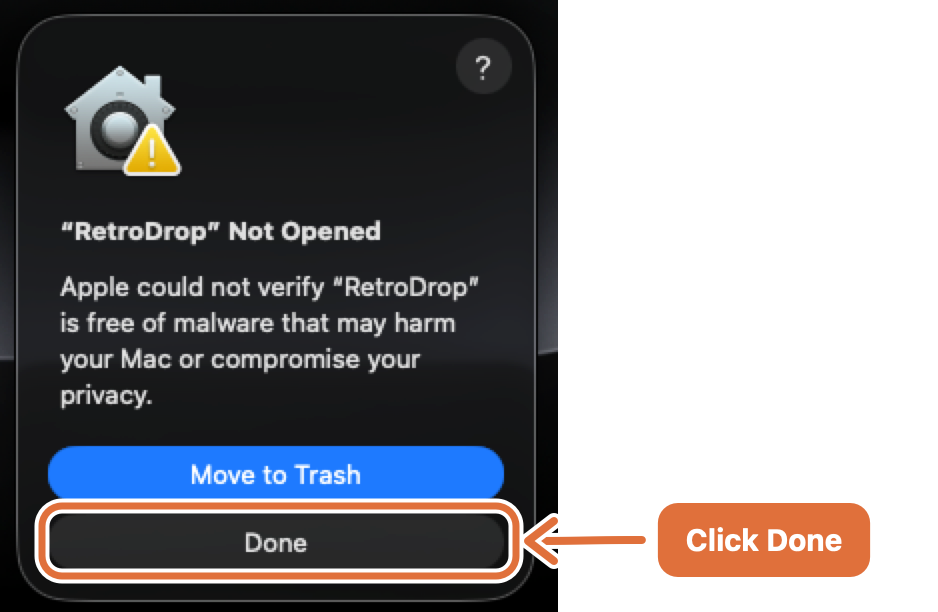
- On the warning, click Done, not Move to Trash.
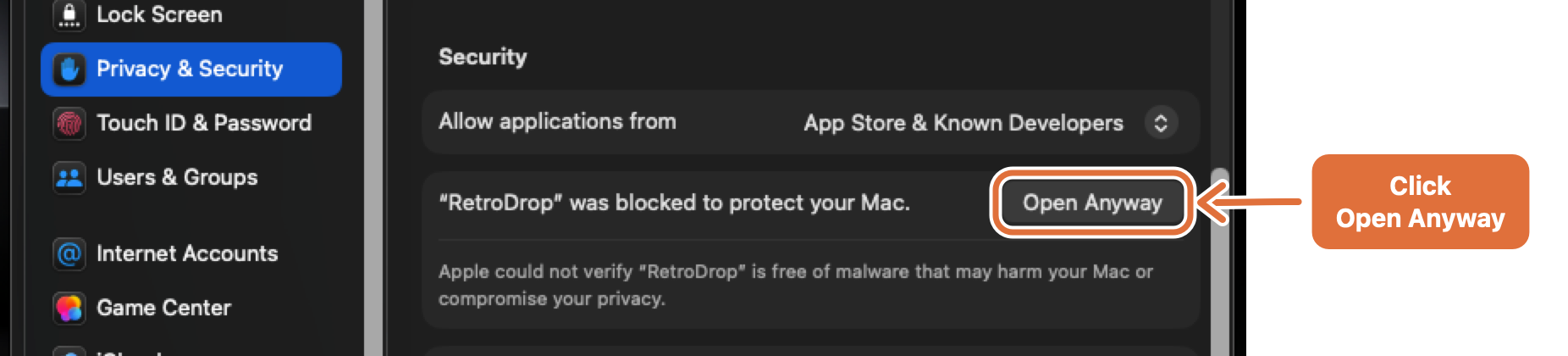
- Open System Settings → Privacy & Security, scroll down to Security, and click
Open Anyway next to the RetroDrop message.
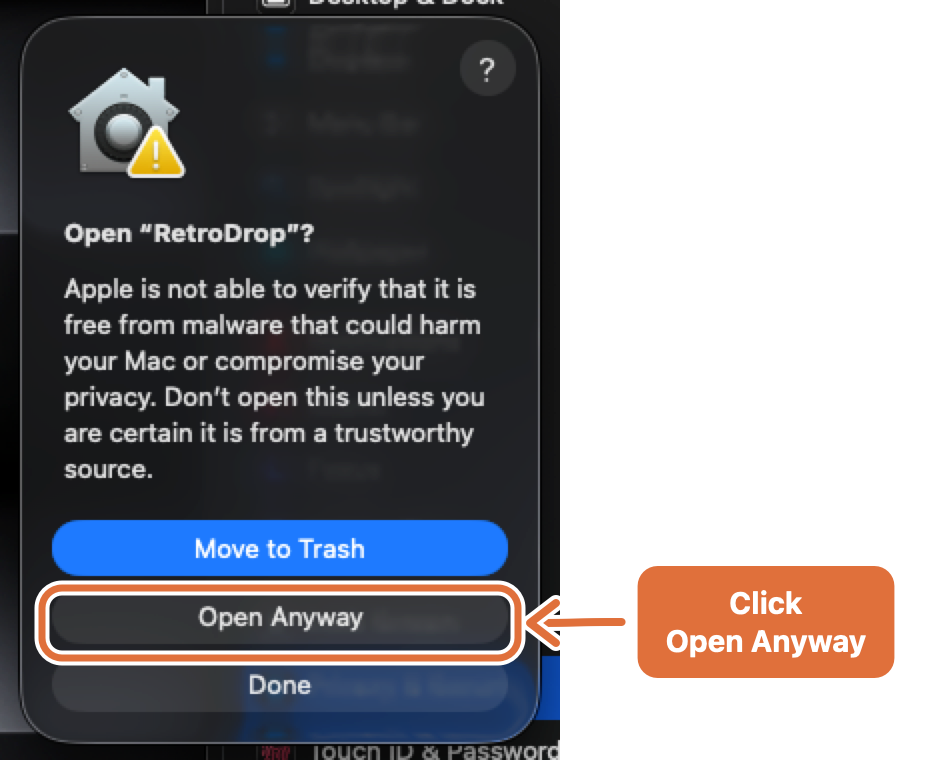
- In the confirmation, click Open Anyway, then enter your password or use Touch ID if asked.
Prefer the Terminal?
This removes the download flag so macOS stops asking: xattr -dr com.apple.quarantine /Applications/RetroDrop.app
A small phone icon appears in your menu bar. That's RetroDrop. There's no window or Dock icon. Optional: tick Open at Login in its menu so it's always there after a restart.
2. Start the server
Click the phone icon and choose Start Server. The icon changes to show a signal, and the menu shows:
- iOS 6 and later · open in Safari: an address like
http://192.168.1.23:8765 - iOS 5 and earlier · mail server: your Mac's address, like
192.168.1.23
Click either one to copy it. The first time, if macOS asks whether RetroDrop may accept incoming network connections, click Allow. Without this, the phone can't reach your Mac.
The phone and the Mac must be on the same Wi‑Fi network.
3. Find out which route your phone uses
On the phone, open Settings → General → About and look at Version.
- 6.0 or higher: use Safari.
- 5.x or lower: use Mail. Safari on these versions can't upload files at all, which is why the Choose File button is greyed out.
4. Send with Safari (iOS 6 and later)
- On the phone, open Safari.
- Type the address from the RetroDrop menu, for example
http://192.168.1.23:8765. Include thehttp://and the:8765. - Tap Choose File and pick one or more photos or videos.
- Tap Upload, and wait for the green Saved message. Videos can take a minute on an old phone's Wi‑Fi, so keep the page open until it finishes.
Tip: bookmark the page or add it to your Home Screen, so next time it's one tap.
5. Send with Mail (iOS 5 and earlier)
Here, the phone thinks it's sending an email. RetroDrop pretends to be the mail server and keeps the attachments. Nothing is actually emailed, and nothing leaves your network.
One-time setup (about 2 minutes)
Keep RetroDrop's server running while you do this, because the phone checks the settings as you go.
- On the phone, open Settings → Mail, Contacts, Calendars → Add Account… → Other → Add Mail Account.
- Fill in Name:
RetroDrop, Address:retrodrop@mac.local, Password: anything (e.g.retro), Description:RetroDrop. - Tap Next, then choose POP at the top.
- Under Incoming Mail Server: Host Name is your Mac's address from the RetroDrop menu (e.g.
192.168.1.23), User Name isretrodrop, and Password is anything. - Under Outgoing Mail Server: Host Name is the same address. Leave User Name and Password blank.
- Tap Save. If the phone asks "Cannot connect using SSL. Do you want to try setting up the account without SSL?", tap Yes.
Sending photos and videos
- Open Photos and pick a photo or video. To send several photos at once, open an album, tap the share button, select up to 5 photos, then tap Share.
- Choose Email Photo (or Email Video).
- Make sure the From field shows
retrodrop@mac.local. Tap it to change it. - Put any address in To, e.g.
mac@mac.local. It's never used. - Tap Send. The photos appear on your Mac within a few seconds.
Long videos: Mail on old iOS may offer to send a smaller version, or refuse very long videos. Trim long clips on the phone first.
"Cannot Get Mail" when RetroDrop is off? That's harmless. To silence it, turn the account off under Settings → Mail, Contacts, Calendars → RetroDrop, and back on when you need it.
6. Get your photos
Everything is saved in Pictures/RetroDrop on your Mac. You can change the folder with Change Folder… in the menu. From the RetroDrop menu:
- This session shows what arrived since you last pressed Start. All photos shows everything in the folder.
- Drag a thumbnail onto the desktop or into any app to copy it. Double-click to open it.
- Click Saving to "RetroDrop" to open the folder in Finder.
Files are named with the date and time they arrived, e.g. 20261018-143205-image.jpg, so nothing is
ever overwritten. Choose Stop Server when you're done.
7. Send photos and videos to the phone
RetroDrop also works the other way round: from your Mac to the phone.
- In the RetroDrop menu, choose Send Photos & Videos to Phone…, or drop files onto the RetroDrop menu bar icon. You can also right-click a file in Finder and choose Open With → RetroDrop.
- RetroDrop converts them so old iPhones can open them: photos become JPEGs (up to 2048 pixels), and videos become 640×480 H.264, which plays on any old iPhone. Waiting on Phone in the menu lists what's ready.
- On the phone, with RetroDrop's server running:
- Safari (any iOS version): open RetroDrop's address. Under From your Mac, tap a photo, then touch and hold it and tap Save Image. Safari can play videos, but it can't save them.
- Mail (phones with the RetroDrop mail account): check mail in the RetroDrop account. Each photo or video arrives as its own email. Touch and hold it to save it to your Camera Roll.
Files stay in Waiting on Phone until you remove them, so several phones can pick them up.
8. Keep your Mac's address from changing
Your router gives your Mac its address, and it can change after a restart. For the Safari route, just check the RetroDrop menu each time. For the Mail route, a changed address means editing both Host Names on the phone, so it's worth making the address permanent:
- Best: in your router's settings, look for DHCP reservation, static lease or address reservation, and reserve the current address for your Mac.
- Alternative: on the Mac, open System Settings → Network → Wi‑Fi → Details… → TCP/IP, set Configure IPv4 to Using DHCP with manual address, and enter the current address.
Troubleshooting
Safari says it can't open the page
- Is the server running? The menu bar icon should show a signal.
- Are the phone and the Mac on the same Wi‑Fi? Guest networks often block devices from seeing each other.
- Check the address in the RetroDrop menu, which may have changed. Include
http://and the port. - macOS firewall: open System Settings → Network → Firewall → Options… and make sure RetroDrop is allowed to accept incoming connections.
- Some routers have client isolation or AP isolation turned on, which stops devices on Wi‑Fi from talking to each other. Turn it off in the router settings.
"Choose File" is greyed out in Safari
The phone is on iOS 5 or earlier, where Safari can't upload files. Use the Mail route instead.
The menu says "Port 8765 was busy…"
Another app on your Mac was using RetroDrop's usual port, so RetroDrop moved to the next free one. Use the new address shown in the menu, and update any bookmarks on your phones.
Mail setup can't connect, or says "Cannot Verify Server Identity"
- Start the server on the Mac first. The phone checks the account during setup.
- Make sure both Host Names are your Mac's current address, and that SSL is off. You'll find the SSL setting under the account's Advanced settings.
- If the menu says "Email uploads are off: Port 25 is already in use", another app on your Mac is using the mail ports. Quit it and restart RetroDrop's server.
The email sends but nothing arrives
- Check that the email was sent from the RetroDrop account, not your regular email account.
- On the phone, open the Outbox in Mail. If messages are stuck there, the Mac's address has probably changed. Update the Outgoing Host Name.
Still stuck?
Open an issue with your phone model, its iOS version, and what the RetroDrop menu shows.